8 Hidden iPhone Hacks You Probably Don’t Know About

8 Hidden iPhone Hacks You Probably Don’t Know About

iPhone Tips and Tricks

From taking photos hands-free to charging your battery faster, these may be the iPhone hacks you wish you knew earlier! So, what are you missing out on? Well, you’ve probably only scratched the surface on what your trusty companion can do. There are dozens of little tricks and tweaks that can make your iPhone easier, faster and more fun. Moreover, with each iOS update, new features are constantly added, so it’s important to keep up-to-date.

Use a Different Web Browser

With iOS 14, you no longer need to be stuck with Safari. Instead, you can make Chrome or Firefox, or any other browser your default browser.

Add Captions to Find Later

To help you search for a particular photo or video, iPhone now allows you to add captions to both photos and videos. Simply swipe up and add your caption.

Respond to Individual Messages

During a busy group chat, you can now select the individual message you want to respond to. Tap and hold the comment and hit ‘Reply’, and then type your message. Now, your reply has started a new thread within the main message.

iPhone Hacks to Keep Things Tidy

Like most of us, chances are, you don’t use all of your Apps every day. So, to keep your screen clutter to a minimum, you can now opt to move unused Apps to your Library. Simply tap Remove ‘App’ from the app’s quick actions, then select ‘Move to App Library’.

Launch Searched Apps Faster

As you search for apps through the default Search tool, your phone will predict the best match and put it at the top of the results. If that’s the app you want, you can open it immediately by tapping “Go” on the keyboard.

Fastest Charge Eva

If you’re really up against it and need a rapid injection of charge, turn on Airplane mode. This way, all the background stuff and battery hungry connections will be temporarily shut down. Consequently, most of the incoming charge will then be going straight to the battery. Also, make sure you know all about battery life hacks here.

Fill the URL Address Quickly

Start by putting the website name into the address bar and then hold the period icon. A list of common extensions will pop up, such as .com, .com.au etc. Choose yours, and boom, it’s done.

Correct Siri

Sure, Siri knows her stuff, but she’s not perfect. So next time she mispronounces something, say, “That’s not how you pronounce ……” and Siri will ask for the correct way to say it. Furthermore, she’ll then repeat it to make sure.

SOS Phone Repairs are iOS Experts so call us anytime if you need a hand!
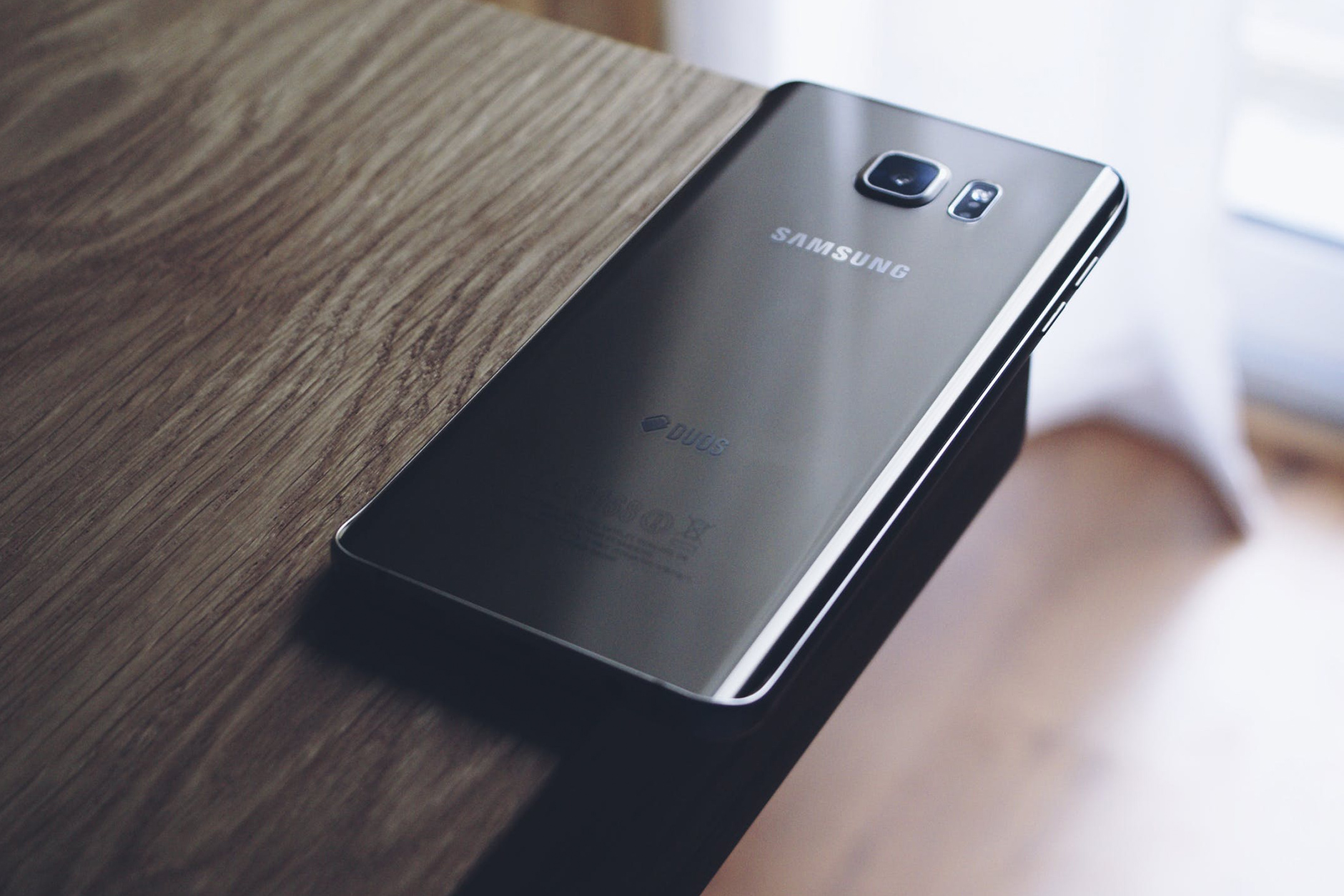
5 Common Android Problems and How to Fix Them

We all love our mobile phones, but they aren’t perfect. They’re often running out of battery, freezing up, running too damn slowly or struggling to connect to the internet. And make no mistake, these problems are common to both Android and Apple phones. So, here’s a quick fix guide to some of the most common Android problems that owners may face.

Dreaded Battery Drain

Many owner’s report Android problems such as their battery draining too quickly. Luckily, there are two easy ways to prolong your battery life. First, set your phone to Battery Saving Mode. Second, adjust your Brightness level. All too often, brightness is set too high, so bring it down to just below halfway. Ultimately, you’ll be surprised how quickly you get used to it and how much extra life you’ll get as a result.

Slow User Interface and Frozen Screen

Your phone will begin to slow down if its internal storage is filling up. Therefore, move photos and videos onto a micro SD or onto the Cloud. Also, delete any unused Apps and delete App caches. Finally, programs such as App Cache Cleaner and Clean Master are available for free from the Google Play store.

Connectivity Issues

If you’re having trouble connecting to Wi-Fi, 4G or network, try going to Airplane mode for 30 seconds. This will effectively reset your connections and force them to try again. Also, try toggling individual connections if this doesn’t work. If this fails, you may need to re-input your network settings.

App Crashes

Annoying as they are, they can happen for lots of reasons. Start by closing the App entirely and then re-opening it. Next, check for an App update. Lastly, you may need to update your Android OS.

Android Problems – Unresponsive Screen

An unresponsive screen is super frustrating. So, before you chuck your phone against the nearest wall, just turn it off and restart it after 20 seconds. This will usually work. Of course, if it’s cracked or water damaged, then it’s time to take it to the professionals.

Call 1800PHONES and chat to our friendly experts at SOS Phone Repairs today.

How to Check Your iPhone’s Battery Health

Does it seem like your phone is losing charge too quickly? It may be simply that you’re using your phone more than usual, or maybe there’s a problem? Fortunately, Apple now provides a built-in tool that enables users to check their iPhone battery’s health. The battery health tool offers four main functions. Firstly, it allows you to monitor your charging regime and to check your battery’s overall health. Secondly, you can check to see which apps are the greedy ones and therefore make adjustments accordingly. Thirdly, you can enable Low Power Mode to minimise certain background activities. Lastly, iOS can run battery diagnostics and let you know if you need a new iPhone battery or not. For more information about how to charge your battery, go here.

iPhone Battery Suggestions

Beyond displaying the various diagnostic results, Battery Health also provides suggestions intended to improve your battery life. One insight is brightness. It’s incredible how many people leave their brightness cranked up all day and then wonder why they run out of charge! Other details include a graph displaying time plugged into a charger and when the screen was activated or not. The data display can even be switched between 24 hours or the last ten days.

Battery Usage by App

Scroll down further, and you’ll discover battery usage by app. Here you’ll find the battery hungry apps. If an app unexpectedly turns out to be a battery hog, but you don’t use it much, it may be continually sending data to its host. It’s probably best to delete it. The default display shows the percentage of charge used by each app. However, by tapping on an app, you can change it to the amount of time.

iPhone Battery Replacement

Essentially, if your iPhone doesn’t hold its battery charge as well as it should, and the battery capacity is low, then it’s probably time for a new battery. If the capacity is still high, you should delve into the apps and take actions to reduce their drain on the battery.

Talk to us today about improving your iPhone battery life or about getting a replacement battery. Call 1800PHONES now.